Importing Contacts
Importing leads and contacts is a simple process involving 4 simple steps:
- Upload your .csv file
- Map the .csv columns to Paminga fields
- Some optional settings
- Choose any Actions Paminga should take - add contacts to lists, drip series, workflows; create Leads in CRM, etc.
Upload Your CSV File
Paminga supports importing leads and contacts from both comma seperated and semi-colon separated (common in Europe) .csv files.
Contact Import: 4 Simple Steps

Formatting your CSV:
The "Header Row" (the first row of the file) must contain names of the column headings/contact attributes corresponding to the data in that column. All subsequent rows represent a contact you wish to update or add.
Each column, or comma separated field, specifies a contact attribute. Unless you’re composing the file in a text editor, like Notepad, you do not need to put the commas in yourself; this is handled automatically for you in applications like Excel when you choose to save the file in CSV format.
Example of a Properly Formatted CSV File:
First Name, Last Name, Email Address, Account Name
John, Doe, john@doe.com, "IBM, Inc."
Jane, Doe, jane@doe.com, "International Business Machines, Inc."
Notice that all data containing commas is wrapped in double quotes.
Map CSV Columns to Paminga Fields
It's critical to "map" the columns in your .csv file to their corresponding standard and/or custom fields in Paminga.
You may map to standard and/or custom fields on Leads, Contacts, and Accounts.
Paminga recognizes many standard field names and automatically maps them to appropriate standard fields.
You are free to adjust those mappings as needed.
Contact Import Field Mappings

Dates and True/False Fields
A date like 05/04/2025 means April 5 in some countries and May 4 in others, so it pays to know how Paminga reads these values. The same rules apply to contact and account custom fields.
- Date and Date/Time fields: use
YYYY-MM-DD(for example,2025-05-13). A Date/Time value can add a time:2025-05-13 14:30:00. Paminga reads a date with slashes month first, so05/04/2025is May 4 and13/05/2025is not accepted. - True/False (Boolean) fields:
1,true,yes, andymean true.0,false,no, andnmean false. Case does not matter. - Empty cells: an empty cell does not change the field's current value.
A value that Paminga cannot read is not imported. The contact still imports, the field keeps its current value, and the value is listed in the import's invalid values file (Invalid_Values.csv), so you can fix it and import it again. The import results email shows how many values were not recognized.
Consent Fields
GDPR Consent Granted and Email Tracking Consent read the same true and false values. Email Tracking Consent also reads unknown, which clears the answer. Every change an import makes to either field is logged on the contact's activity stream with the source Contact Import and the user who ran the import, so import a consent only where you collected it. Email Tracking Consent explains what each value means when you send.
Drop Down Fields
A Drop Down option has a label (what people read) and a value (what gets stored). An import matches each cell against the option's value, never its label or a translation of the label.
That difference matters most when your Drop Down mirrors a CRM picklist. The label may read "Enterprise (1,000+ employees)" while the value is ENT-001, and your .csv needs ENT-001. Capitalization and spaces around the cell value don't matter; spelling and accents do. To check the value of an option, open the Drop Down in Settings and look at the option's Value field.
A cell that matches no option is handled like any other value Paminga cannot read: the contact imports, the field is left as it was, and the cell is listed in Invalid_Values.csv.
Lead Owner
To set the owner of each imported lead or contact, map your owner column to Lead Owner Email Address and fill it with the email address of a Paminga user.
The mapping list also offers Lead Owner, but an import does not write to it. A column mapped to Lead Owner is ignored, and the owner stays as it was.
Optional Settings
You may choose to adjust some settings for your contact import. The most commonly used settings are the defaults:
Existing/Duplicate Leads or Contacts
It's common for some customers to use a .csv import to add new data to existing records.
When a lead or contact in your .csv file already exists in Paminga, you choose whether to:
- Update that contact with any new information from the .csv file
- Skip that contact. Do not alter fields based on data in the .csv file
Paminga finds matching records using either
- the lead/contact's email address
- the Paminga
contact_idthat you may choose to include in your .csv file.
Optional Summary Report
When your contact import has finished processing, we'll post a message in the Notification Center summarizing the results. Every import is also listed in Import History, with counts of the contacts it added, updated, and rejected.
You may also choose to receive a summary report via email. We'll pre-populate your email address here by default.
Privacy Regulations: Permanent Deletion of Leads & Contacts
Certain privacy regulations provide citizens with the right to have all data related to them permanently deleted and destroyed.The EU's GDPR is an example of such a regulation.
To cause Paminga to permanently delete contacts in bulk, you may take the following steps:
- Include a column named "Delete Permanently" in your .csv file
- Set the value of that column to "true" for each contact you wish to delete permanently
- Check the box labeled "Permanently Delete Contacts" in the on-screen dialog
Records deleted in this manner cannot be recovered under any circumstances.
Actions
You can choose to have Paminga take various Actions on your imported leads and contacts automatically.
You can also choose to use an existing Action Set – a preconfigured set of actions you can trigger Globally – for every row in your CSV file and/or Conditionally – only trigger actions on rows that meet additional condition of your choosing.
These actions are executed after your import is complete.
Actions may be "Global" (triggered for every record imported in your .csv file) or "Conditional" (only triggered for records that meet additional conditions of your choosing).
Some of the actions that may be taken include:
- Add to Automations
- Remove From Automations
- Add to Marketing Lists
- Remove From Marketing Lists
- Add to Subscription Lists
- Remove From Subscription Lists
- Add to Google Ads Audience (coming soon!)
- Sunset Contact
- Un-Sunset Contact
- Unsubscribe Contact
- Adjust Lead Scores
- Set Lead Stage
- Set Field Values
- Create Leads in your connected CRM platform
Contact Import Actions
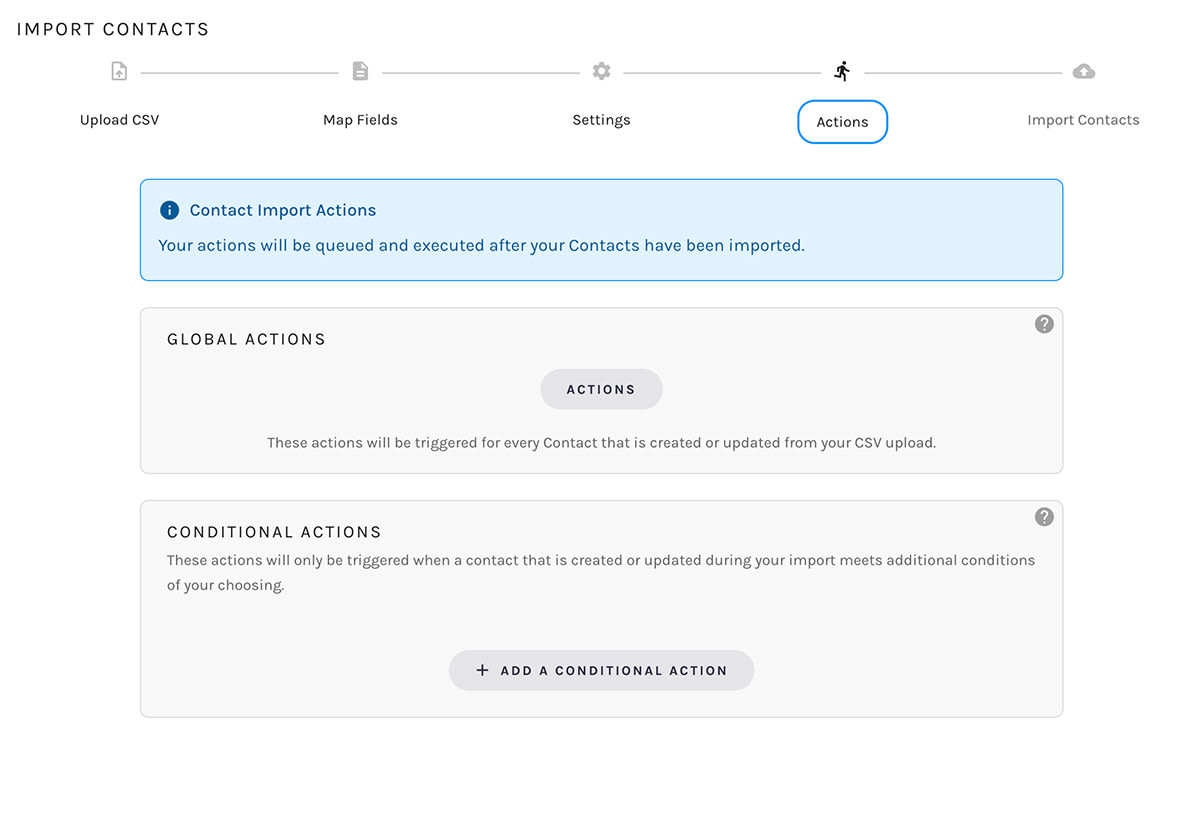
If you opted to skip duplicate records on the "Settings" step of the import process:
Paminga will take no actions on leads/contacts that are found to be duplicates.
Importing Suppression Lists
You can use Paminga's contact import process to set the bounced, unsubscribed, or GDPR/Privacy consent status of contacts as needed.